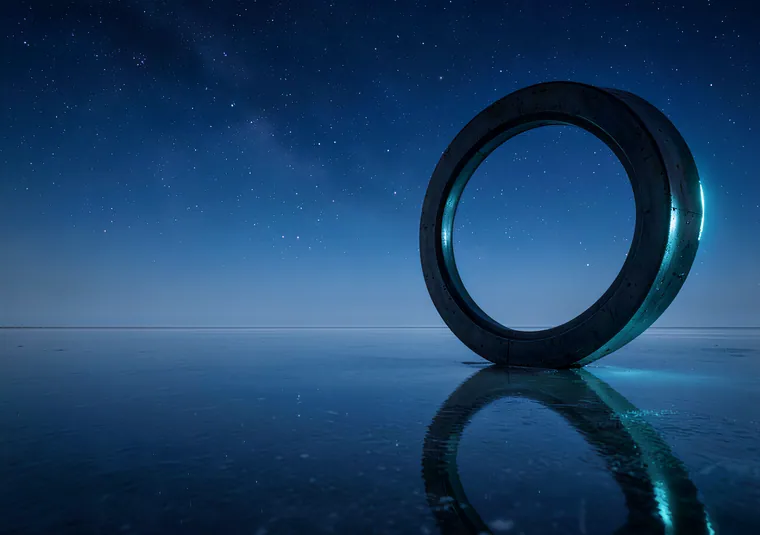
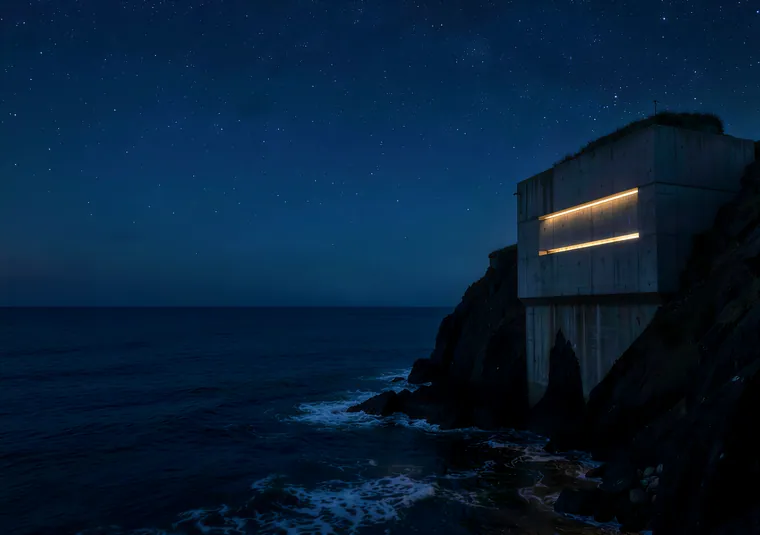
Depth effect wallpapers on the iPhone Duo
Updated 2026-11-11
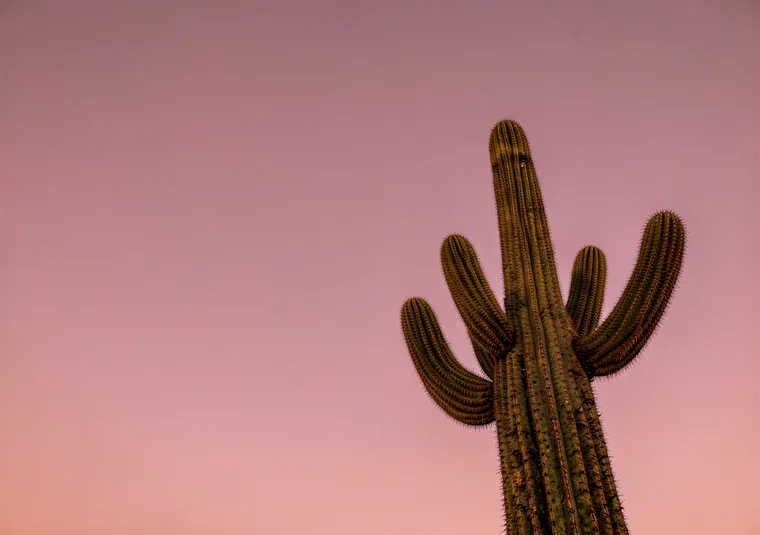
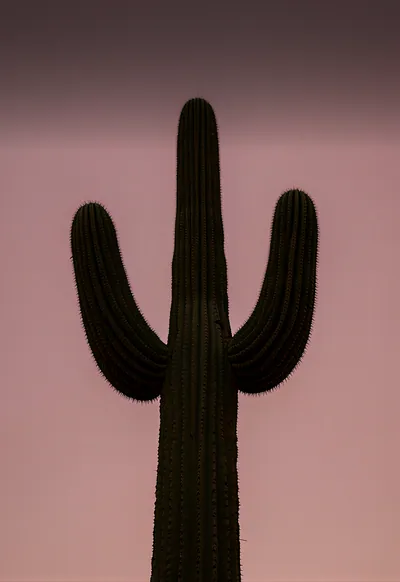
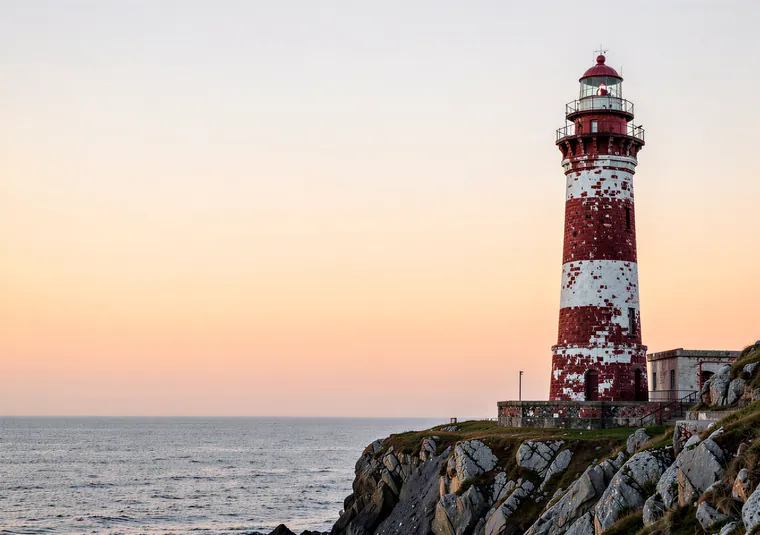
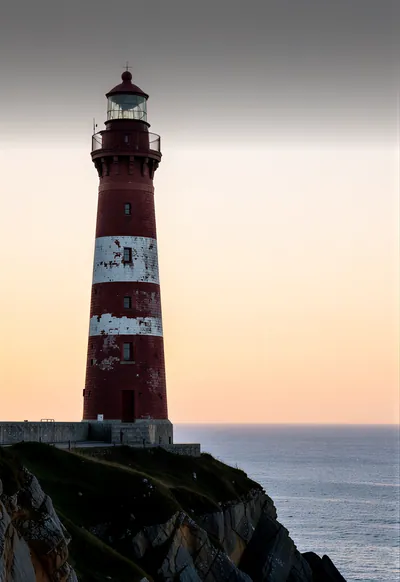
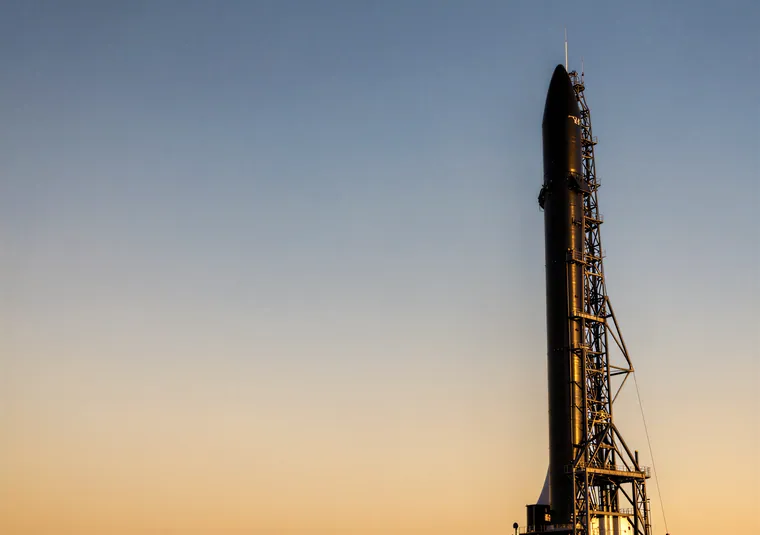
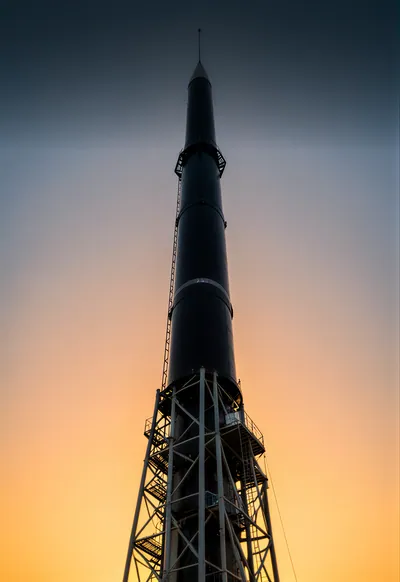
The iOS depth effect lifts the subject of your Lock Screen photo in front of the clock, so a tower or a mountain peak overlaps the time while the rest of the picture stays behind it.
What makes a wallpaper work
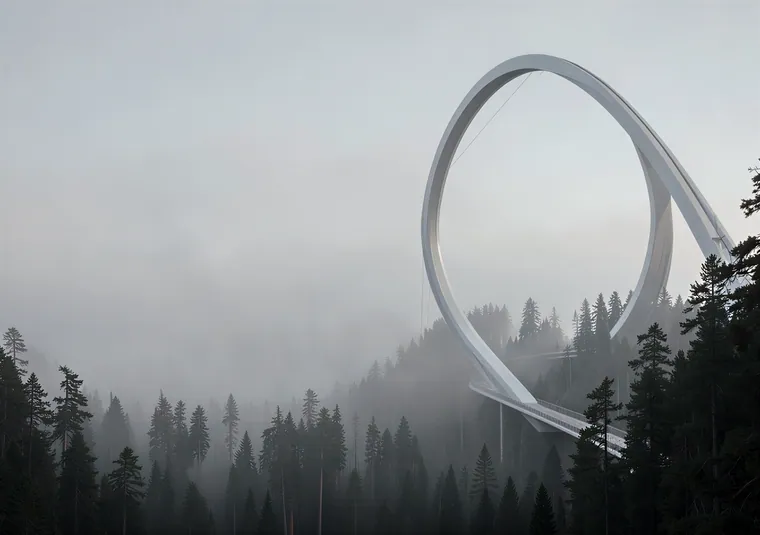
iOS has to find a clear subject and separate it from the background. That works best with one tall, sharp subject against a clean sky, with the subject's top reaching into the clock area but not covering most of it. If the subject covers too much of the time, iOS switches the effect off to keep the clock readable.
UNFOLD's Depth Effect sets are measured before publishing: the subject must overlap between about 8% and 50% of the clock area on the Lock image.
Turning it on
- Set the Lock image on the cover screen (see the setup guide).
- Touch and hold the Lock Screen, tap Customize, then Lock Screen.
- Tap the ••• button and make sure Depth Effect is on.
If the subject stays behind the clock
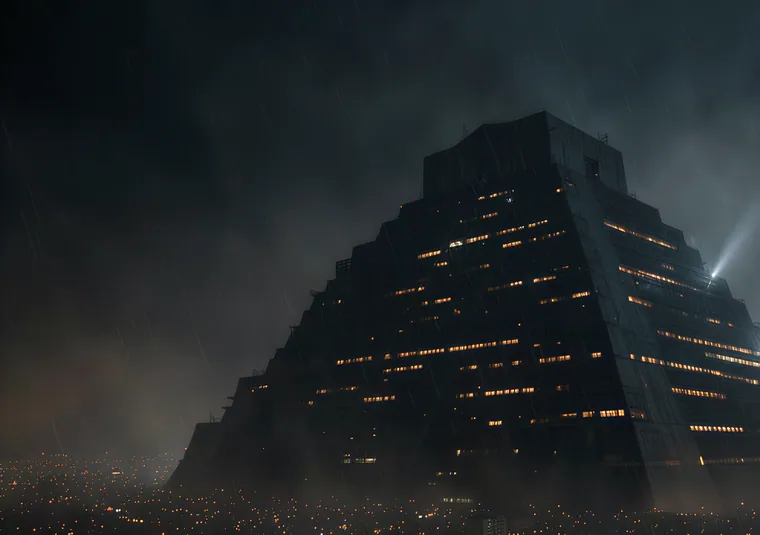
Don't zoom or move the photo in the editor: the overlap is composed for the exact cover-screen size. Some widget layouts and clock styles can disable the effect, so try removing widgets that sit near the clock. And it only works on photos iOS can segment, so flat illustrations usually won't.